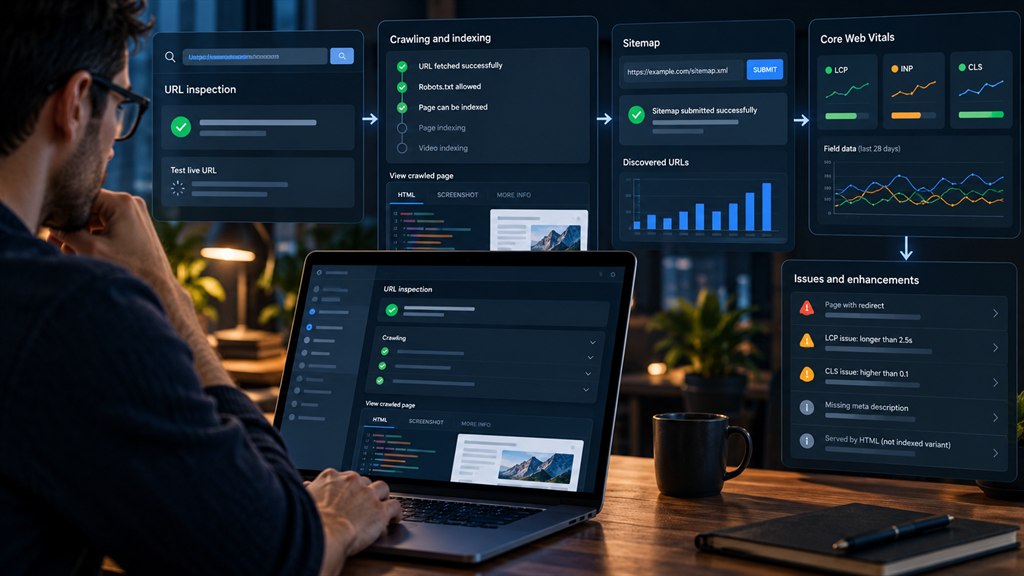
To use Google Search Console for technical SEO, verify a Domain property, submit your XML sitemap, then work through five reports in order: Page indexing (which URLs Google left out and why), URL Inspection (how Google sees one page, including the canonical it chose), Crawl stats (server errors and slow responses), Core Web Vitals (real-user LCP, INP and CLS) and the rich result reports (structured data errors). Fix the cause, click Validate fix, and repeat the check every month.
On this page
- Set up Search Console properly first
- The Page indexing report: why pages are not indexed
- The URL Inspection tool: how Google sees one page
- The Sitemaps report
- The Crawl stats report: server health through Google’s eyes
- The Core Web Vitals report
- HTTPS, security issues and manual actions
- The rich results report and other enhancements
- The Links report, Removals and the disavow tool
- Using the Performance report for technical SEO
- A monthly Search Console routine for technical SEO
- Screaming Frog vs Search Console (and Semrush, Ahrefs)
- When to bring in a technical SEO consultant or agency
- Frequently asked questions
Third-party crawlers such as Screaming Frog, Sitebulb, the Semrush Site Audit and the Ahrefs Site Audit are excellent at finding problems. But they guess at how Google will treat your pages. Google Search Console does not guess: it reports what Googlebot actually crawled, what it indexed, and which canonical URL it picked. That makes it the source of truth for any technical SEO audit, and it is free.
This Google Search Console tutorial focuses on Search Console technical SEO: indexing, crawling, rendering, page experience and structured data. It sits inside our technical SEO audit playbook and pairs with the 12-point technical SEO checklist.
Set up Search Console properly first
Most reporting mistakes start with the wrong property, so settle domain property vs URL prefix first. Search Console offers two types:
| Property type | What it covers | Use it for |
|---|---|---|
| Domain property | Every protocol and subdomain: http, https, www, non-www, m., blog. | Your main property. Required for site-wide crawl stats and the full picture. |
| URL-prefix property | Only URLs under one exact prefix, such as https://www.example.com/blog/. | Extra views of a section, or for teams that only own one folder. |
Search Console verification for a Domain property uses a DNS TXT record at your domain registrar. Once verified:
- Submit your XML sitemap under Indexing → Sitemaps.
- Add colleagues under Settings → Users and permissions, giving developers “Full” rather than “Owner” access.
- Link Search Console to Google Analytics 4 so landing-page data appears next to engagement data.
- Import the site into Bing Webmaster Tools, which can copy your verified Search Console properties in a few clicks. Bing also feeds several AI assistants.
The Page indexing report: why pages are not indexed
Open Indexing → Pages. The chart splits your known URLs into indexed and not indexed, and the table underneath lists every reason Google gave. Not every non-indexed URL is a problem: redirects, deliberate noindex pages and canonicalised duplicates should be excluded. What matters is whether pages you want to rank appear in the wrong bucket.
| Status | What it means | What to do |
|---|---|---|
| Crawled – currently not indexed | Google fetched the page but chose not to index it, usually because it judged the page low value or too similar to others. | Improve or merge thin pages, strengthen internal links to the ones that matter, remove near-duplicates. |
| Discovered – currently not indexed | Google knows the URL but has not crawled it yet, often a crawl capacity or priority issue. | Link to it from strong pages, keep it in the sitemap, check server speed in Crawl stats. |
| Duplicate without user-selected canonical | Google sees duplicates and you did not say which one is the main version. | Add a rel=canonical to the preferred URL and point internal links at it. |
| Duplicate, Google chose different canonical than user | You declared a canonical but Google picked another URL. | Make signals consistent: internal links, sitemap, redirects and hreflang should all agree. |
| Alternate page with proper canonical tag | The page points to another canonical and Google respected it. | Usually fine. Act only if the page should rank on its own. |
| Excluded by ‘noindex’ tag | A meta robots or X-Robots-Tag noindex is present. | Check this list carefully after every release. A stray noindex can remove a whole template. |
| Blocked by robots.txt | Googlebot may not crawl the URL. | Unblock pages you want indexed. Remember a blocked URL can still be indexed from links. |
| Soft 404 | The page returns 200 but looks empty or like an error page. | Return a real 404/410, redirect to a close match, or add genuine content. |
| Server error (5xx) | The server failed when Googlebot asked for the page. | Check hosting logs and Crawl stats; fix capacity or application errors first. |
| Page with redirect / Not found (404) | The URL redirects or no longer exists. | Fine if intended. Update internal links that still point to these URLs. |
Blocking a URL in robots.txt does not remove it from Google. If the page also carries a noindex tag, Google cannot see the tag because it is not allowed to crawl the page. To remove a page, allow crawling and use noindex, or return a 404/410.
After fixing a cause, open that reason in the report and click Validate fix. Google re-checks the affected URLs over the following days or weeks and moves them to “Passed” when the issue is gone.
The URL Inspection tool: how Google sees one page
Paste any URL into the search bar at the top of Search Console. The URL Inspection tool shows two different things, and mixing them up causes a lot of confusion:
- The indexed version — what Google stored the last time it crawled, with the crawl date. This is what a ranking report reflects.
- Test live URL — a fresh fetch of the page as it is right now. Use it after a fix to confirm Google can see the change before it recrawls.
For technical work, the most useful fields are the user-declared canonical versus the Google-selected canonical, the crawl status, the page fetch result, the indexing allowed flag, and View crawled page, which shows the rendered HTML and a screenshot. If your content is built with JavaScript, compare the rendered HTML with what users see. Missing text or links there means Google cannot see them either.
Request indexing asks Google to recrawl one URL. It has a daily limit and does not guarantee indexing, so save it for new or important pages and rely on sitemaps for everything else.
The Sitemaps report
Under Indexing → Sitemaps, each submitted sitemap shows its status, last read date and the number of discovered URLs. Check three things:
- The status is “Success” and the read date is recent.
- The discovered count roughly matches the number of pages you want indexed. Far more suggests junk URLs; far fewer suggests missing sections.
- The sitemap only lists canonical, indexable URLs that return 200. Redirects, noindex pages and duplicates in a sitemap send mixed signals.
Keep accurate lastmod dates. Google has said it uses lastmod when it is consistently accurate, so only change it when the page content really changes.
The Crawl stats report: server health through Google’s eyes
Find it under Settings → Crawl stats (it is only available for root-level properties, which is another reason to use a Domain property). It shows total crawl requests, download size and average response time over the last 90 days, broken down by:
- Host status — whether Google had problems fetching robots.txt, resolving DNS or connecting to your server. Any red here is urgent.
- Response — the share of 200, 301, 404 and 5xx responses. A rising share of 5xx or 404 responses wastes crawl activity.
- File type — HTML, JavaScript, CSS, images. Unexpectedly heavy JavaScript crawling can point to rendering-dependent pages.
- Purpose — refresh (recrawling known URLs) versus discovery (new URLs).
- Googlebot type — smartphone versus desktop. On most sites the smartphone crawler should dominate.
If average response time climbs, crawling usually slows down too. On large sites that is often the hidden cause behind “Discovered – currently not indexed”.
We read every report, find the root cause and fix it with your developers.
The Core Web Vitals report
The Core Web Vitals report uses field data from real Chrome users (the Chrome UX Report), not a lab test. It groups similar URLs together and rates each group “Good”, “Needs improvement” or “Poor” on three metrics, measured at the 75th percentile of visits:
| Metric | Measures | “Good” threshold |
|---|---|---|
| LCP (Largest Contentful Paint) | How quickly the main content appears. | 2.5 seconds or less |
| INP (Interaction to Next Paint) | How quickly the page responds to taps and clicks. It replaced FID in March 2024. | 200 milliseconds or less |
| CLS (Cumulative Layout Shift) | How much the layout jumps while loading. | 0.1 or less |
Because the data is real-user and rolling, a fix takes weeks to show. Use PageSpeed Insights or Lighthouse to test a change straight away, then use Validate fix here. Our Core Web Vitals and INP guide covers the fixes in depth.
HTTPS, security issues and manual actions
- HTTPS report — lists URLs Google could not serve as HTTPS, often because of mixed content, invalid certificates or HTTP canonicals.
- Security issues — hacked content, malware or social engineering. These can trigger browser warnings and hurt traffic overnight.
- Manual actions — a human reviewer found a policy violation, such as unnatural links or thin content. This is the only place Google tells you about one, and the only time a reconsideration request is needed.
Note that Google retired the Mobile Usability report in late 2023. Mobile problems now show up through Core Web Vitals, URL Inspection screenshots and Lighthouse instead.
The rich results report and other enhancements
When Google detects supported structured data, a report appears under Enhancements or Shopping: the breadcrumbs enhancement, product snippets and merchant listings, review snippets, videos, events, organisation and others. Each item is “Valid”, “Valid with warnings” or “Invalid”. Fix the invalid ones first. A single template error, such as a breadcrumb that points to the wrong ID, can affect every page built from that template.
Two caveats. Since 2023 Google shows FAQ rich results mainly for well-known government and health sites, and HowTo rich results were removed, so do not expect those enhancements to drive traffic. And valid markup makes a page eligible for rich results, not guaranteed to get them. Test changes first with the Rich Results Test.
The Links report, Removals and the disavow tool
The Links report lists your top linked pages, top linking sites and top internal links. For technical SEO, the internal links table is the useful part: important pages should be near the top. If a key service page has few internal links, it will struggle to rank whatever its content.
The Removals tool hides a URL from results for about six months. It is a quick fix for an emergency, not a permanent removal. Make the change permanent with a noindex or a 404/410.
The disavow tool is separate from the main interface and rarely needed. Google ignores most spammy links on its own. Use it only for a manual action for unnatural links, or when you know a past agency built paid or manipulative links.
Using the Performance report for technical SEO
The Search Console Performance report is usually treated as a keyword report, but it is also an early-warning system for technical problems:
- Compare dates before and after a release or migration, by page. A template that lost impressions overnight usually has a technical cause.
- Use a Search Console regex filter on the Page dimension to isolate sections, such as
/blog/or a product template. - Check Search appearance to see whether rich result impressions dropped after a schema change.
- Remember Search Console keeps 16 months of data. For longer history, set up the Search Console bulk data export to BigQuery, or pull the API into Looker Studio.
A monthly Search Console routine for technical SEO
- Page indexing: compare the indexed count with last month and scan new “not indexed” reasons.
- Sitemaps: confirm each sitemap was read recently and its counts make sense.
- Crawl stats: check host status, 5xx share and average response time.
- Core Web Vitals: note any URL group that moved to “Poor”.
- Enhancements: fix any new invalid items.
- Security issues and Manual actions: confirm both are clear.
- Performance: look for pages or sections with sudden drops.
- URL Inspection: spot-check your five most important pages, including the Google-selected canonical.
After a site migration or redesign, run this routine weekly for the first two months.
Screaming Frog vs Search Console (and Semrush, Ahrefs)
| Tool | Strength | Limitation |
|---|---|---|
| Google Search Console | Google’s own indexing, canonical, crawl and field data. Free. | Sampled examples, delayed data, no full crawl of your site. |
| Screaming Frog / Sitebulb | Crawls every URL; finds broken links, redirect chains, missing tags. | Shows what could be wrong, not what Google actually did. |
| Semrush / Ahrefs site audits | Scheduled crawls, issue tracking and competitor data in one place. | Paid; priority scores are the tool’s opinion, not Google’s. |
| Bing Webmaster Tools | Free crawl and index data for Bing, plus IndexNow support. | Bing’s view only. |
The best audits combine them: a crawler finds the candidate problems, and Search Console tells you which ones Google actually hit. Our guide to the best SEO tools compares the paid options.
When to bring in a technical SEO consultant or agency
You can run the routine above yourself. Bring in a technical SEO consultant or technical SEO agency when indexed pages are falling and you cannot see why, after a migration or redesign, when Google keeps choosing different canonicals, or when developers need a prioritised fix list rather than a list of warnings. A good technical SEO audit should explain each issue’s cause, its likely impact and who needs to fix it. Our technical SEO services include exactly that, with the fixes tracked through Search Console until they pass.
Google Search Console for technical SEO: frequently asked questions
How do I use Google Search Console for technical SEO?
Verify a Domain property, submit your sitemap, then review Page indexing, URL Inspection, Crawl stats, Core Web Vitals and the rich result reports each month. Fix the cause of each issue and use Validate fix to confirm it.
What does “Crawled – currently not indexed” mean?
Google crawled the page but decided not to index it, usually because it judged the page low value or too similar to other pages. Improve or merge the content and strengthen internal links to it.
What is the difference between “Discovered” and “Crawled” – currently not indexed?
Discovered means Google knows the URL but has not crawled it yet. Crawled means Google fetched it and chose not to index it. The first is often about crawl priority; the second about page value.
Why does Google choose a different canonical than mine?
Your signals disagree. Internal links, sitemaps, redirects or hreflang may point to another version. Make every signal point to the same preferred URL.
Should I use a Domain property or a URL-prefix property?
Use a Domain property as your main one. It covers every protocol and subdomain and gives site-wide crawl stats. Add URL-prefix properties only for extra views of a section.
How often should I request indexing?
Only for new or important pages, or after a significant fix. Request indexing has a daily limit and does not guarantee indexing; sitemaps handle everything else.
How long does “Validate fix” take?
Usually from a few days to about two weeks, depending on how many URLs are affected and how often Google crawls them.
Is Search Console enough, or do I need Screaming Frog or Semrush?
Search Console shows what Google did; a crawler such as Screaming Frog or a Semrush or Ahrefs site audit finds every potential issue across all URLs. Most technical SEO audits use both.
Where did the Mobile Usability report go?
Google retired it in late 2023. Use Core Web Vitals, URL Inspection screenshots and Lighthouse to check mobile experience instead.
When should I hire a technical SEO consultant?
When indexed pages fall without an obvious cause, after a migration, when canonicals keep being overridden, or when your developers need a prioritised, explained fix list.