Google Search Console is a free tool from Google that shows how your website performs in Google Search. It reports the queries that bring clicks and impressions, flags indexing and technical problems, and lets you submit sitemaps and request that pages be crawled.
On this page
- What Google Search Console is used for
- The key Search Console reports
- How to set up Google Search Console
- Search Console vs Google Analytics
- Common mistakes
- How to find quick wins in the Performance report
- Fixing common indexing statuses
- Users and permissions
- Google Search Console vs Bing Webmaster Tools
- Going further
- Frequently asked questions
What Google Search Console is used for
Search Console (formerly Google Webmaster Tools) is the only place that shows Google’s own data about your site. SEO tools estimate rankings and traffic; Search Console reports what actually happened. It is used to:
- See which searches your site appears for and how many clicks each brings.
- Find pages that are not indexed, and why.
- Submit XML sitemaps.
- Inspect a single URL and request indexing after updating it.
- Spot mobile usability, Core Web Vitals and structured data problems.
- Receive alerts about manual actions and security issues.
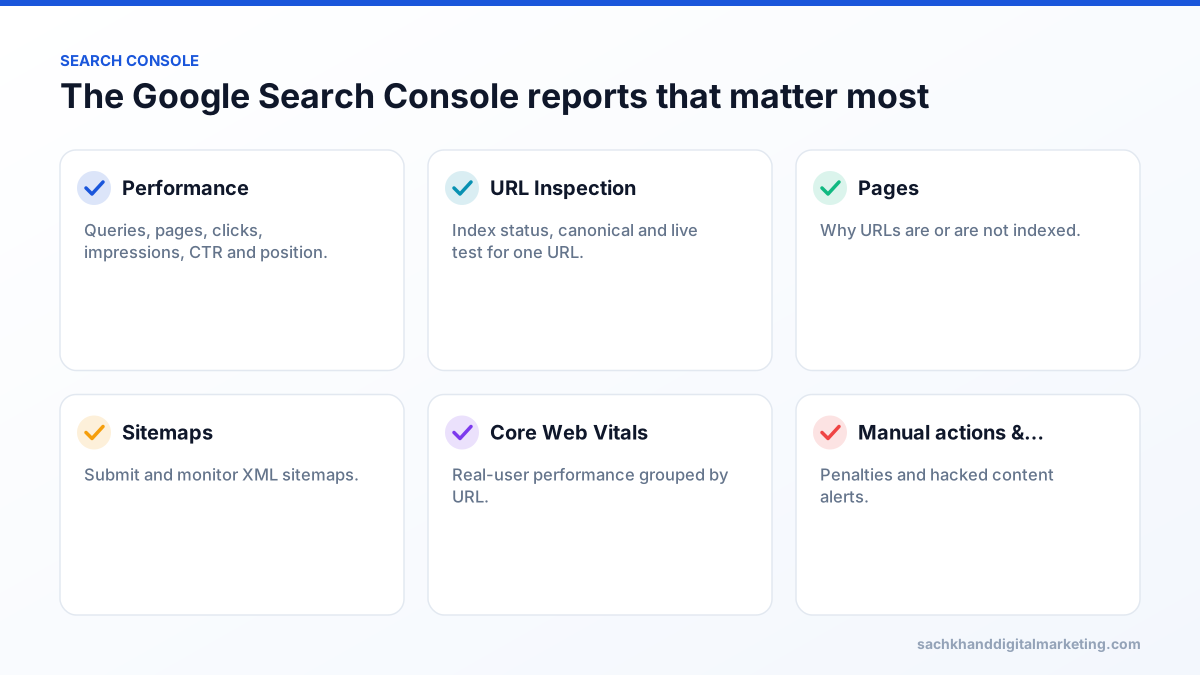
The key Search Console reports
- Performance — clicks, impressions, click-through rate (CTR) and average position, filterable by query, page, country, device and date, with up to 16 months of history. Traffic from AI features such as AI Overviews is included in the overall web search totals.
- URL Inspection — shows whether a specific URL is indexed, the canonical Google chose, and lets you test the live page and request indexing.
- Pages (indexing) — lists indexed and non-indexed URLs with reasons such as “Crawled – currently not indexed”, “Excluded by noindex tag” or “Duplicate without user-selected canonical”.
- Sitemaps — submit sitemap files and check they were read successfully.
- Core Web Vitals — real-user loading, interactivity and visual stability data grouped by URL type.
- Links — top linking sites, most-linked pages and internal link counts.
- Manual actions and Security issues — penalties applied by Google reviewers, and hacked content or malware warnings.
How to set up Google Search Console
- Sign in at search.google.com/search-console with a Google account.
- Add a property. A Domain property covers every subdomain and both http and https; a URL-prefix property covers only one exact address.
- Verify ownership. Domain properties need a DNS TXT record; URL-prefix properties can also use an HTML file, a meta tag, Google Analytics or Google Tag Manager.
- Submit your XML sitemap under Indexing → Sitemaps.
- Wait a few days for data to populate, then review Performance and Pages.
Search Console vs Google Analytics
Search Console shows what happens before the click: impressions, rankings and queries in Google Search. Google Analytics shows what happens after it: sessions, engagement and conversions across all channels. You need both, and they can be linked.
Common mistakes
- Verifying only the https://www version and missing data from other variants — use a Domain property.
- Requesting indexing repeatedly instead of fixing why a page is not indexed.
- Reading average position without filtering by query; site-wide averages are rarely meaningful.
How to find quick wins in the Performance report
- Open Performance → Search results and select the last three months.
- Enable clicks, impressions, average CTR and average position.
- Switch to the Queries tab and filter position greater than 7 and less than 21.
- Sort by impressions to find “striking distance” keywords with real demand.
- Click a query, then the Pages tab, to see which page ranks for it.
- Improve that page’s title, headings, content depth and internal links for the query.
- Compare performance after four to eight weeks.
Queries where you rank in the top five but have a noticeably lower click-through rate than similar queries often need a more compelling title tag or meta description.
Fixing common indexing statuses
| Status in Pages report | Meaning | Fix |
|---|---|---|
| Excluded by ‘noindex’ tag | Page has a noindex directive | Remove it if the page should rank |
| Crawled – currently not indexed | Google chose not to index | Improve quality, add internal links, merge thin pages |
| Discovered – currently not indexed | Known but not crawled yet | Improve internal linking and site quality |
| Page with redirect | URL redirects elsewhere | Update internal links and sitemap to final URLs |
| Not found (404) | Page does not exist | Redirect if it has value, otherwise leave |
| Duplicate, Google chose different canonical than user | Google ignored your canonical | Align canonicals, internal links, sitemaps and content |
Users and permissions
- Owner: full control, including adding users and settings. Verified owners prove ownership themselves.
- Full user: can view all data and take most actions.
- Restricted user: view-only access to most data.
Give agencies and freelancers user access rather than ownership, and remove access when projects end.
Google Search Console vs Bing Webmaster Tools
Bing Webmaster Tools offers similar reports for Bing search, including keyword research, backlinks and URL submission. Because Microsoft Copilot and several AI tools rely on Bing’s index, verifying your site there and submitting sitemaps is worthwhile. You can import sites directly from Search Console.
Going further
Connect Search Console to Looker Studio for dashboards, or use the Search Console API to export more rows of query data for analysis. Link it to Google Analytics to see organic landing page behaviour alongside search data.
Frequently asked questions
Is Google Search Console free?
Yes. Google Search Console is completely free for any website owner who can verify their site.
What is the difference between Google Search Console and Google Analytics?
Search Console reports how your site performs in Google Search results (queries, impressions, rankings, indexing). Google Analytics reports what visitors do on your site from every traffic source.
How long does Search Console take to show data?
Performance data usually begins appearing within a few days of adding and verifying a property. Indexing reports can take a little longer to fill in for a brand-new site.
Can Search Console improve my rankings?
Not by itself. It is a diagnostic tool: it shows the indexing, technical and content problems holding rankings back so you can fix them.
How far back does Google Search Console data go?
The Performance report stores up to 16 months of data. Export data regularly if you need a longer history.
Want experts to handle this for you?
Our specialists turn these fundamentals into rankings, leads and revenue. Start with a free, no-obligation audit of your site.